
Configuring Adyen Payment Method
Important notes
Prerequisites
Setup
Adyen Dashboard – API credentials
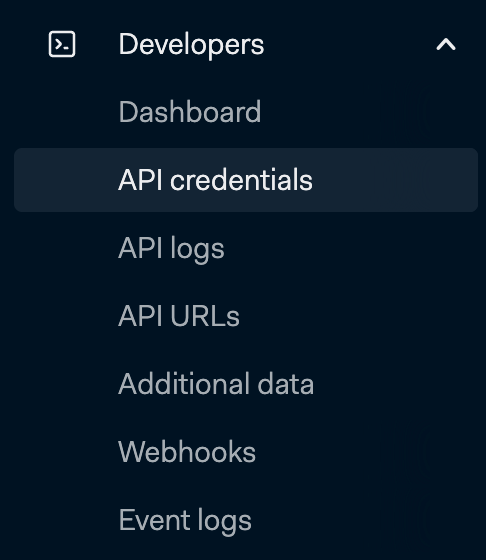
1. Sign in to Adyen and go to Developers → API credentials.
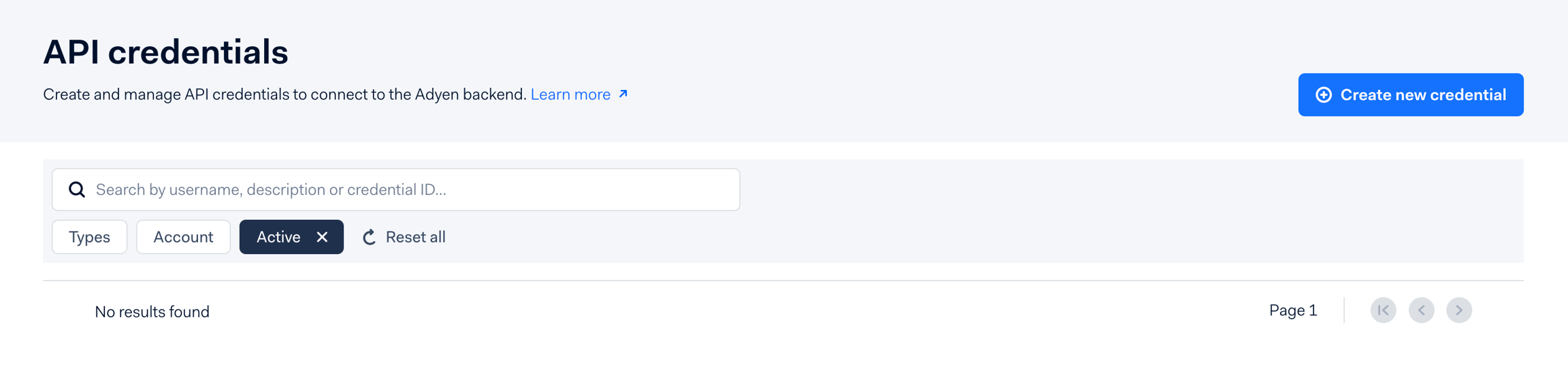
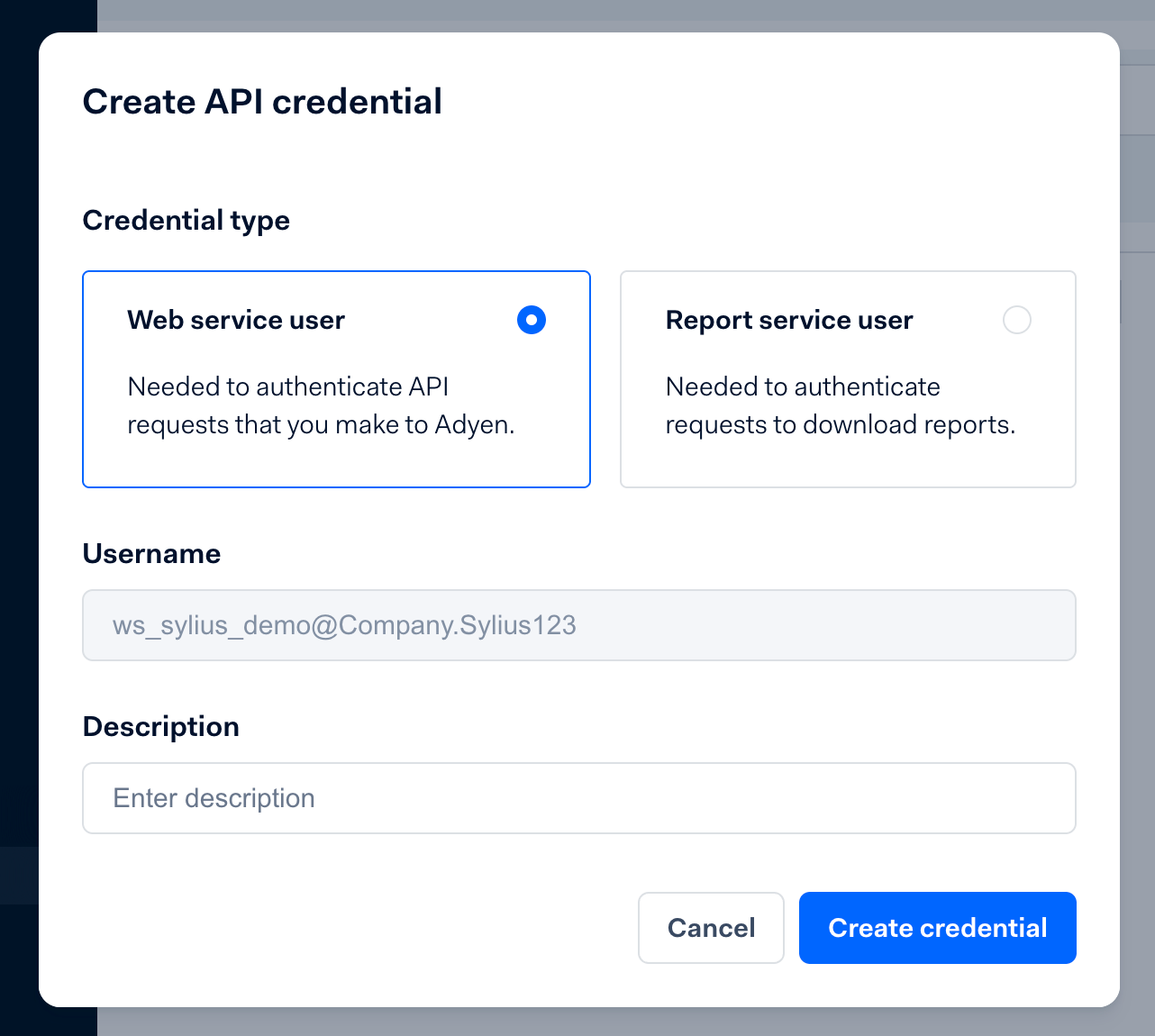
2. Click Create new credential and select Web service user.
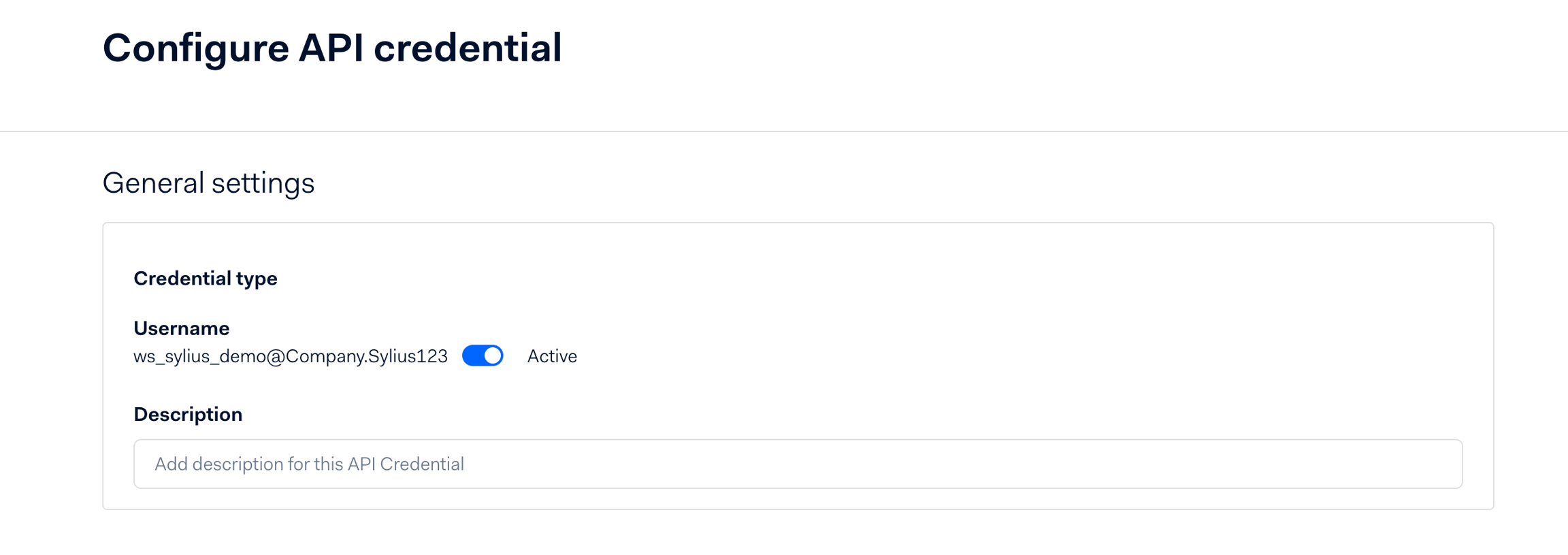
3. After the credential is created, you will be redirected to its details page.
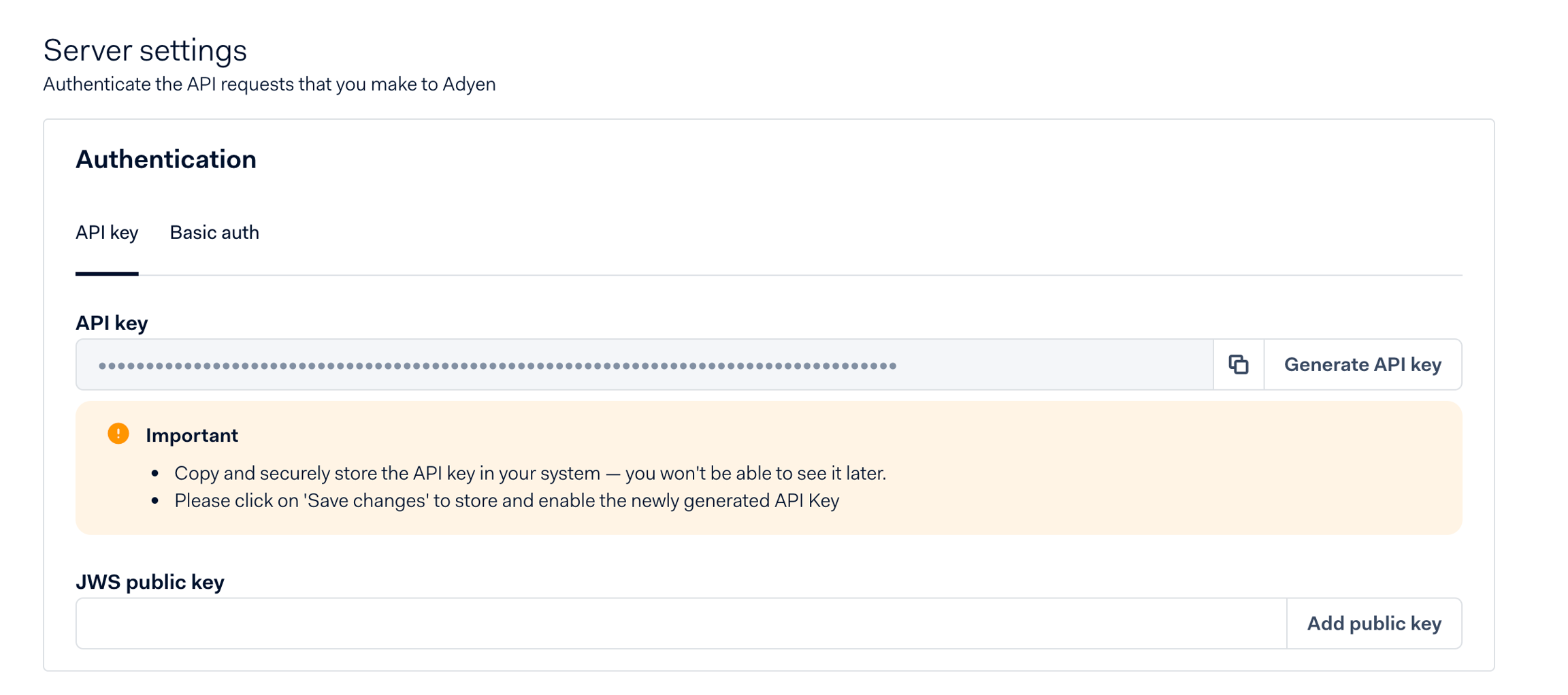
4. In the Server settings section, generate and copy the API key — it will only be shown once.
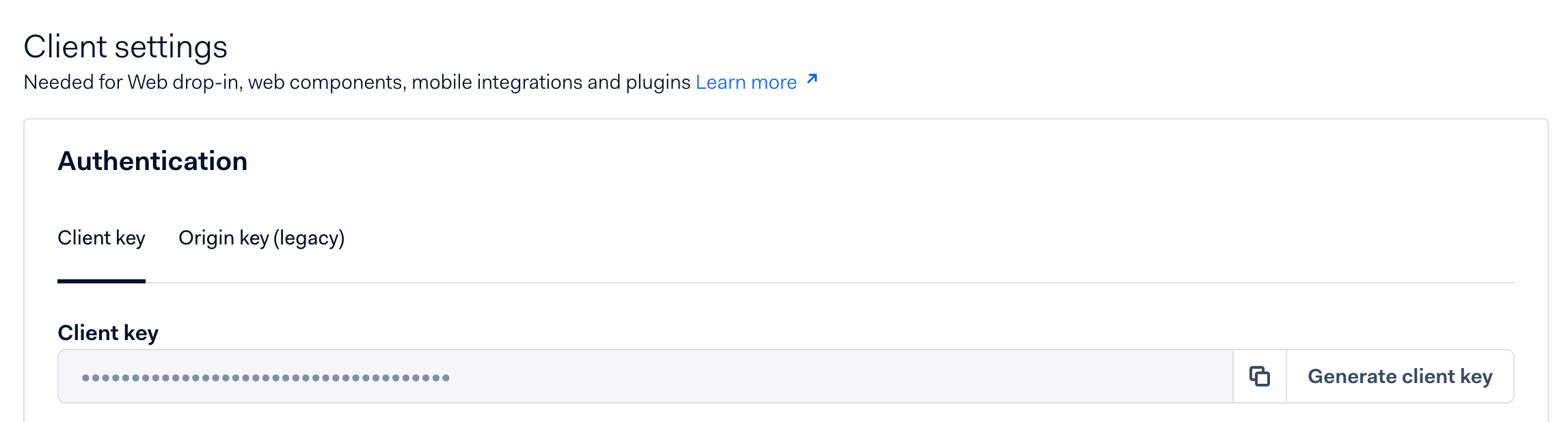
5. In the Client settings section, generate a Client key and copy it as well.
6. Add an Allowed origin for your shop URL (e.g. https://shop.example.com). For testing with a tunneling tool (e.g. ngrok), use the public HTTPS URL.
https://shop.example.com). For testing with a tunneling tool (e.g. ngrok), use the public HTTPS URL.
7. Save changes.
Adyen Dashboard – Webhook configuration
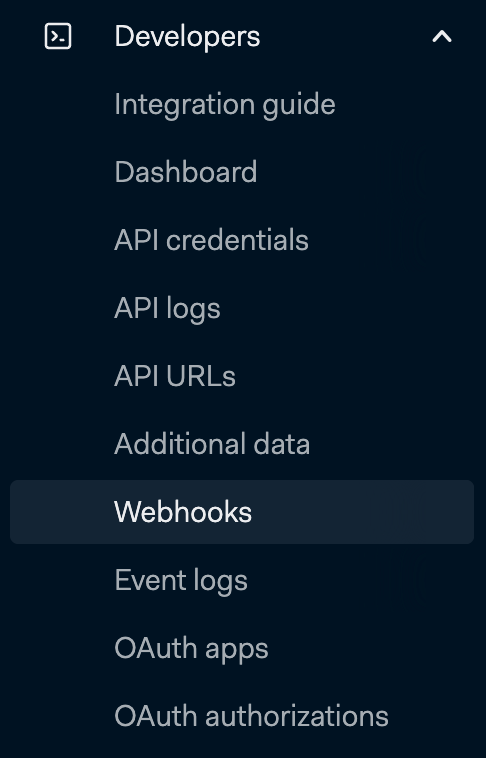
1. Go to Developers → Webhooks.
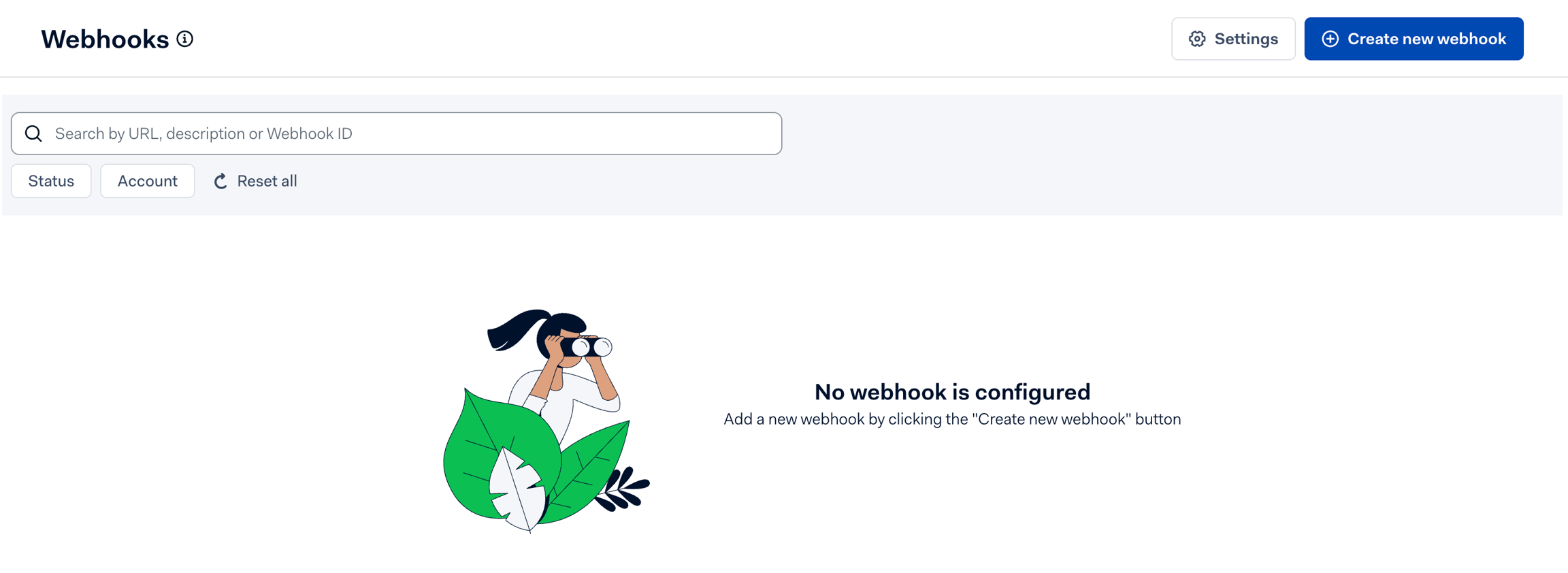
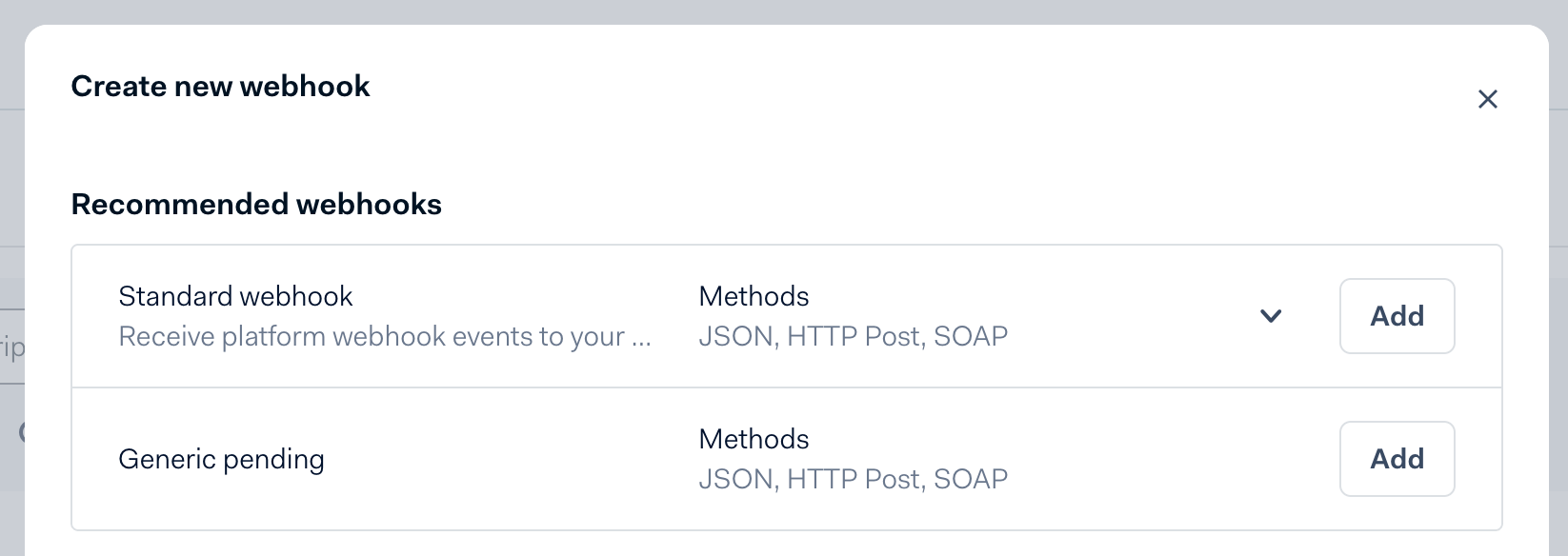
2. Click Create new webhook.
3. Select Standard webhook and click Add.
4. Decide on a code for the new Adyen payment method in the Sylius Admin panel (e.g. adyen_code).
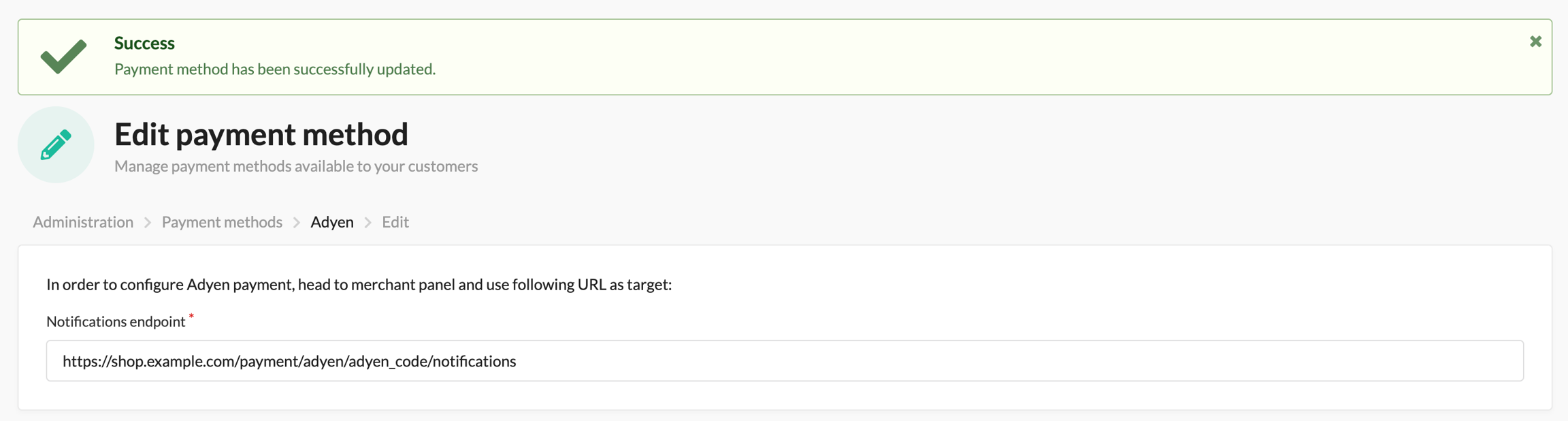
adyen_code).5. In the Server configuration section, set the following Sylius endpoint for handling webhooks: https://shop.example.com/payment/adyen/adyen_code/notifications. Replace adyen_code with the code of your choice.
adyen_code with the code of your choice.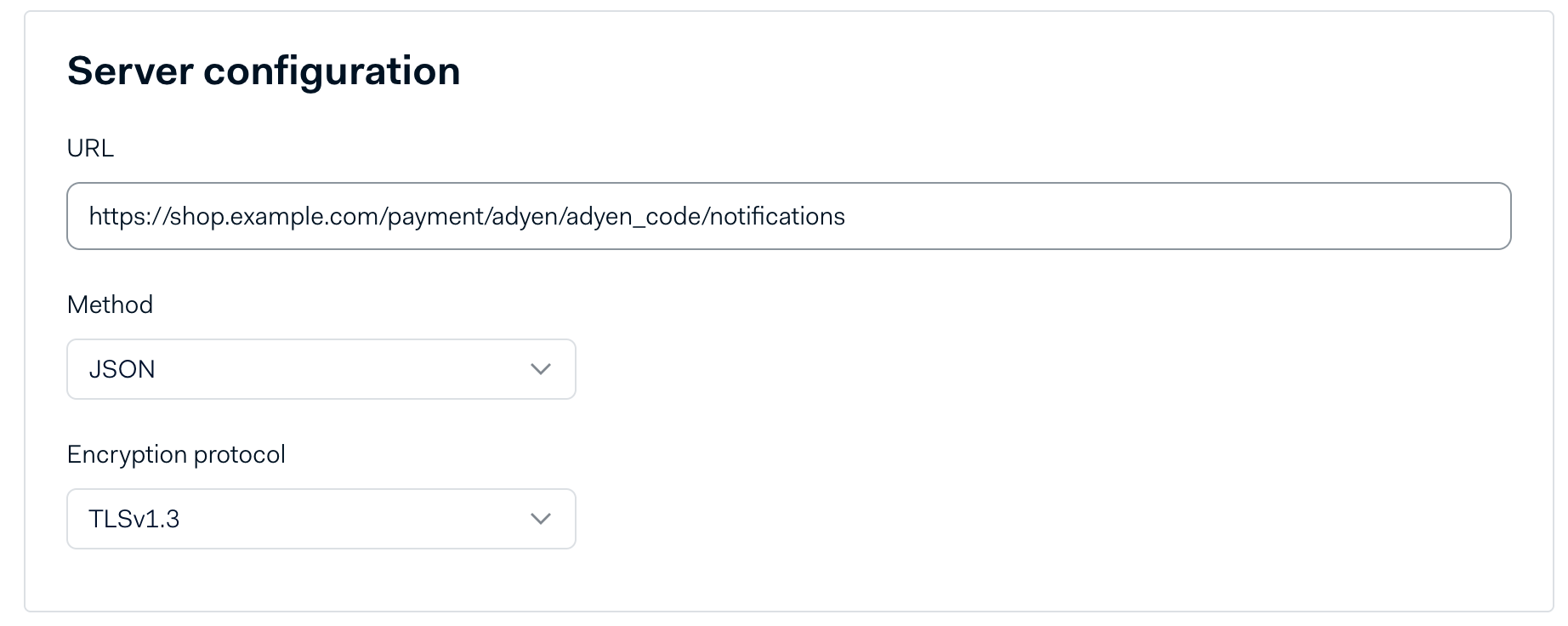
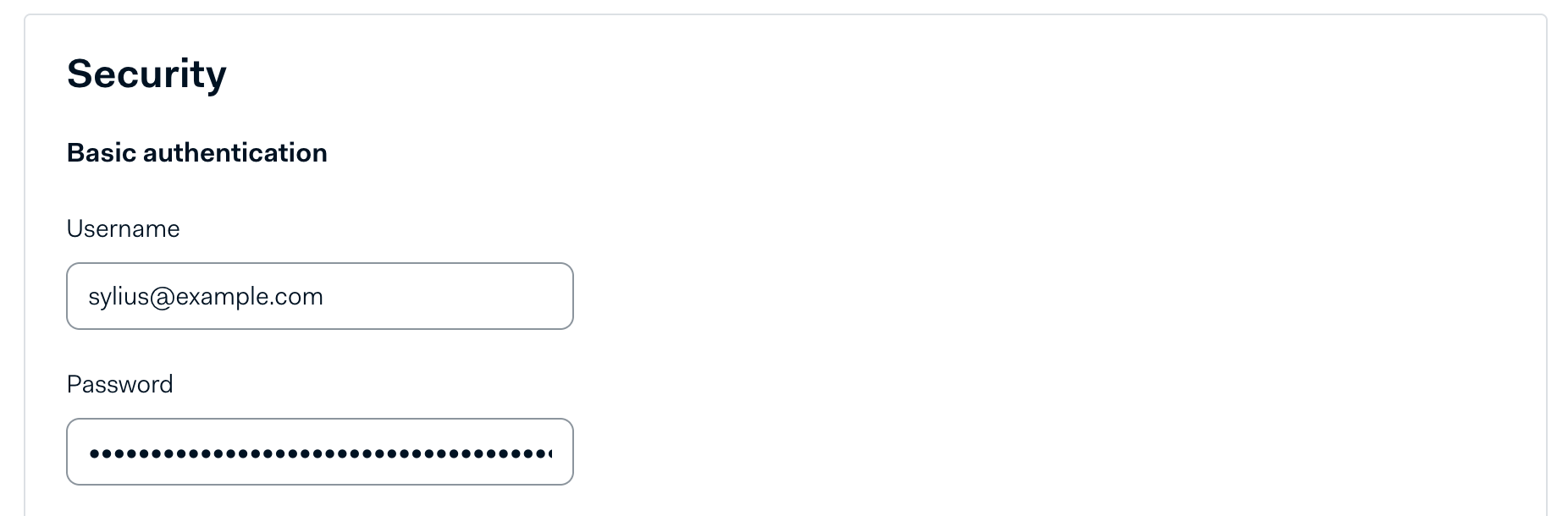
6. In the Security section, create a username and a secure password. Store them, as you will need them later in Sylius.
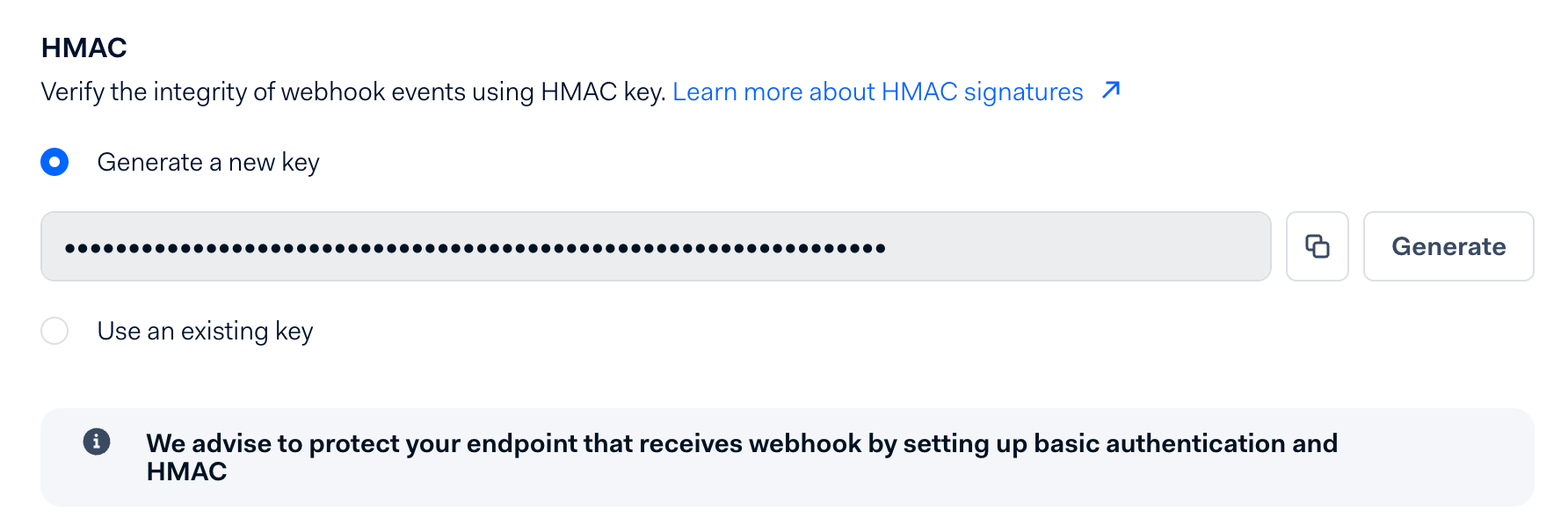
7. In the HMAC section, generate a new HMAC key and copy it.
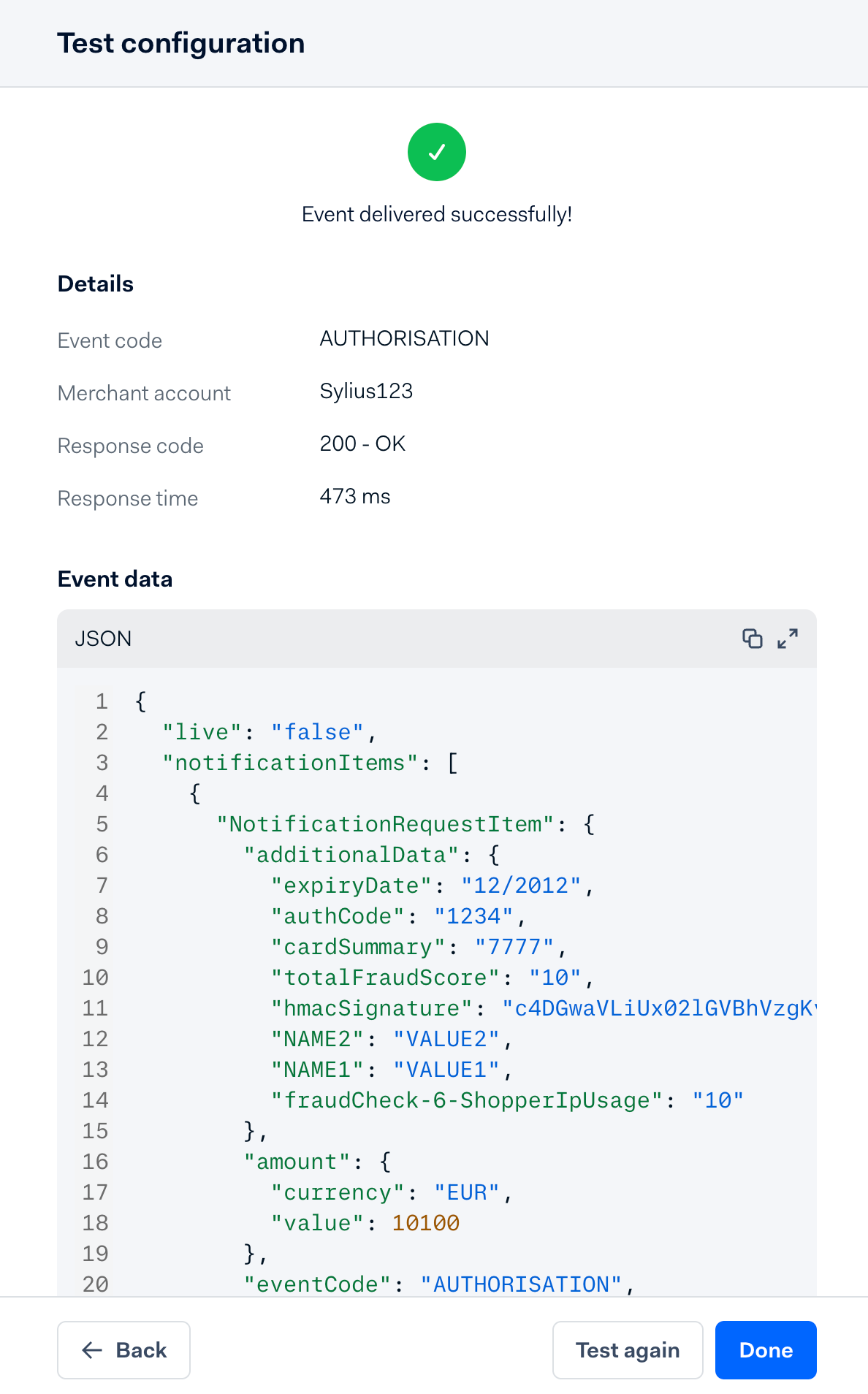
8. Save the webhook configuration. After you finish setup in Sylius, return here to test the connection by clicking Test configuration and selecting any event.
Sylius Admin Panel
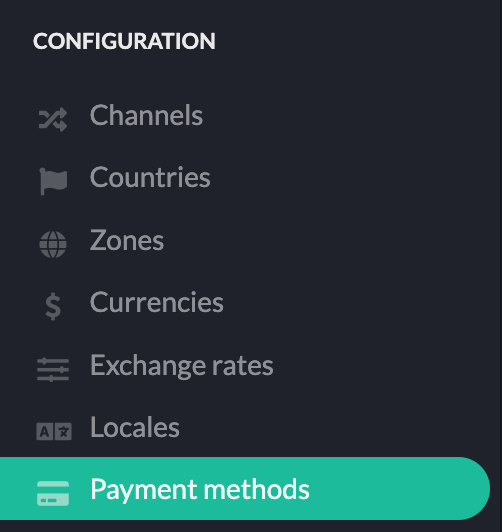
1. Go to Configuration → Payment Methods.
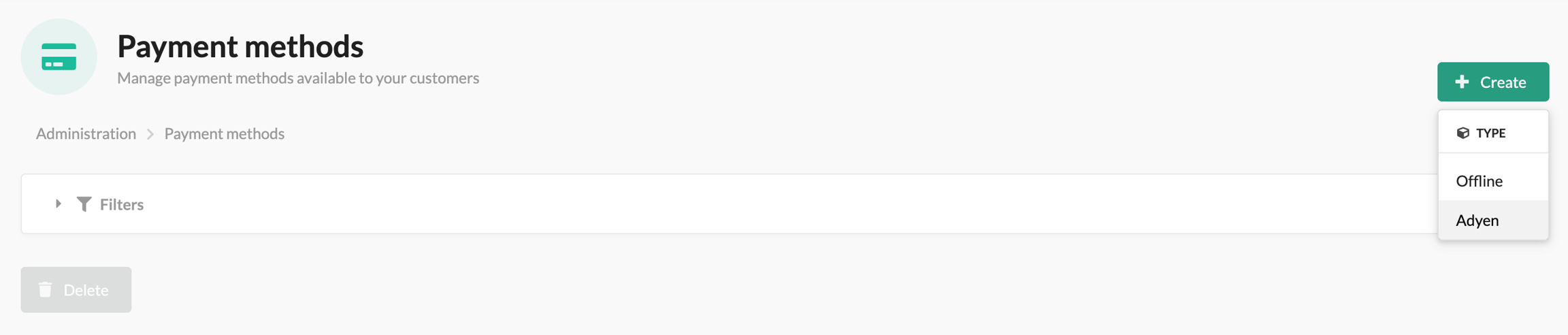
2. Click Create → Adyen.
3. Enter the same code you decided earlier (e.g. adyen_code).
adyen_code).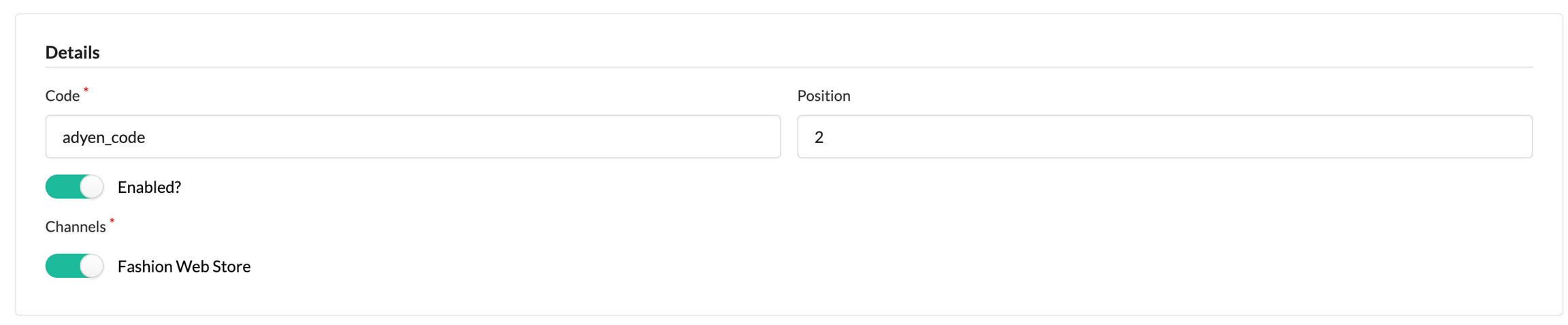
4. Fill in all required fields in the Gateway configuration.
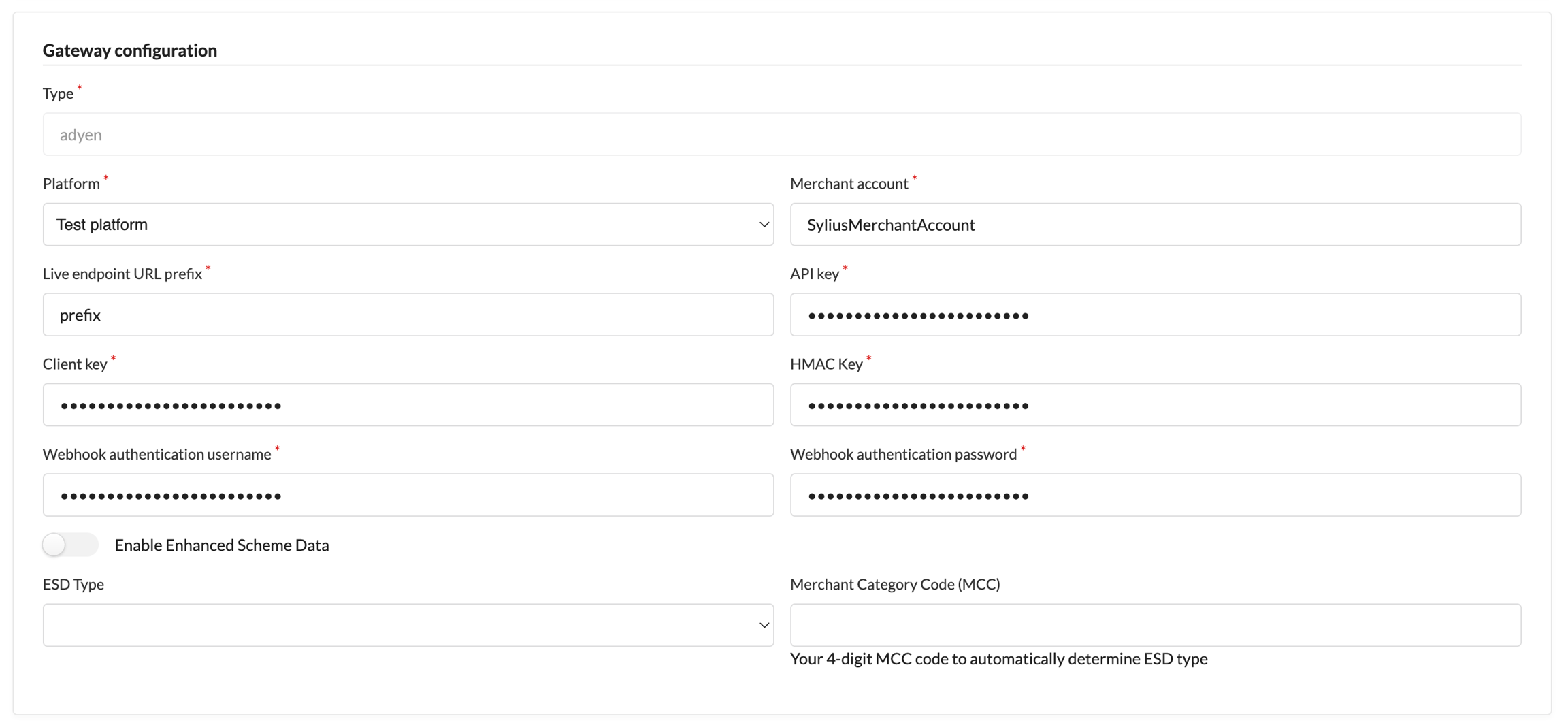
6. Save.
Last updated
Was this helpful?